A/V Instructions for Carrier Library Conference Rooms
The following instructions are for audiovisual equipment in the large Carrier Library conference rooms (1034, 2071, and 3031). They cover how to use the desktop computer in the room, connecting personal laptops, and selecting devices (camera, microphone, and speakers).
If you encounter issues, please contact the LID Desk:
Using the Desktop Computer
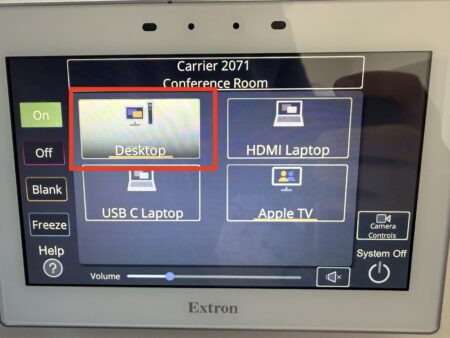
- Turn on the system and select “Desktop”
Tap the Extron touch panel screen (located on the wall near the display) to turn on the system. Press ‘Desktop’ from the device options (on startup, the desktop is automatically selected). - Sign in to the desktop using JMU eID
Using the wireless keyboard and mouse provided in the conference room, sign in to the desktop using your JMU eID. After a few seconds, you will be signed into the computer and you will be able to operate the computer as needed.
Zoom on the Desktop Computer
- Open the Zoom application
Open the Zoom application found on the desktop or by searching it on the taskbar below.
- Sign in to Zoom
Once opening the Zoom application, sign in to Zoom using your JMU eID. After doing so, you can open any meetings that you have scheduled. - Selecting Camera in Zoom
Once starting your meeting, to use the provided camera in the room (located just below the display), press the up arrow next to the camera icon found on the taskbar in the Zoom application. The up arrow will allow you to select the camera labeled “USE THIS ONE”. You can also go to video settings where you can select “HD” and deselect “Mirror My Video”. - Selecting Microphone and Speakers in Zoom

To connect to the dedicated room speakers and microphone (provided in the ceiling), click on the up arrow next to the microphone icon (or audio button). This will allow you to select the correct speakers and microphone to use in Zoom.- For the microphone, select “Speakerphone (USE THIS ONE)”.
- For the speakers, select “Speakerphone (USE THIS ONE)”.
- It is also recommended that you test both the speakers and the microphone prior to starting your meeting.
Using Personal Laptops
Understanding Your Laptop Connections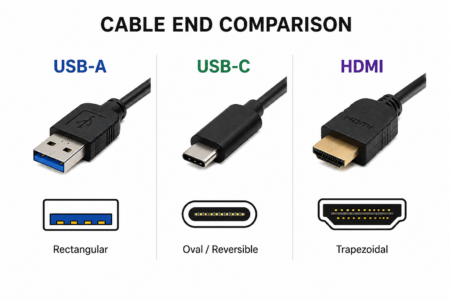
Most modern laptops have USB-C connections. However, there are some laptops that also (or exclusively) have HDMI connections. Make sure to check out the cable needed based on what your device can use.
Cables provided are:
- HDMI to HDMI
- HDMI to USB-C
- USB-A to USB-A (use to connect to camera and microphone)
Connecting Your Laptop to the System
- Locate the Connection Hub
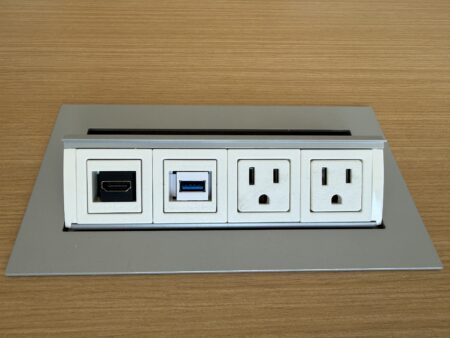
The hub will include an HDMI port (for HDMI to HDMI cables or HDMI to USB-C cables) and a USB-A port (for USB-A to USB-A cables to connect to the camera and microphone. - Connect Provided Cables into You Laptop
There are also provided outlets if there is a need to charge your device. - Select “HDMI Laptop” on Extron Touch Panel
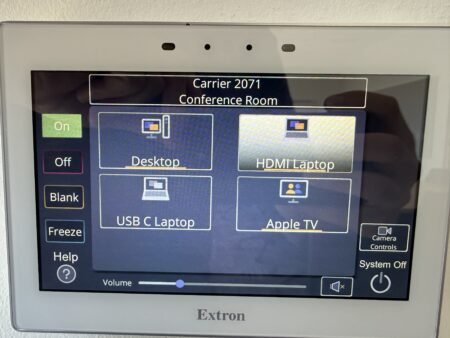
On the touch panel, select the input labeled “HDMI Laptop”. Upon pressing that input, your device will be sent to the display in the room.
Notifications
If you are not connected via the USB-A to USB-A (for camera and microphone), you will receive a message indication at the bottom of the touch panel screen letting you know this.
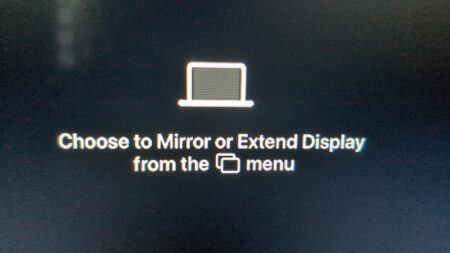
Mac users may encounter a window appearing on their laptop asking to “Mirror” or “Extend” the connected display. This message may also appear on the conference room display. It is recommended to “Mirror” your display.
Laptop Audio
You may need to change your audio output from the built-in speakers to the conference room system.
For Mac laptops: select the Control Center icon, then “Sound”, then “USE THIS ONE”.

For Windows laptops: select the Speaker icon (bottom right corner), then the Toggle icon (next to volume slider), then “Speakerphone (USE THIS ONE)”.

Zoom on Personal Laptops
- Open Zoom on Laptop
At this point, you should be able to open the Zoom application and start your meeting. - Selecting Camera in Zoom
 Once starting your meeting, to use the provided camera in the room (located just below the display), press the up arrow next to the camera icon found on the taskbar in the Zoom application. The up arrow will allow you to select the camera labeled “USE THIS ONE”. You can also go to video settings where you can select “HD” and deselect “Mirror My Video”.
 - Selecting Microphone and Speakers in Zoom
 To connect to the dedicated room speakers and microphone (provided in the ceiling), click on the up arrow next to the microphone icon (or audio button). This will allow you to select the correct speakers and microphone to use in Zoom.
- For the microphone, select “USE THIS ONE”.
- For the speakers, select “USE THIS ONE”.
- It is also recommended that you test both the speakers and the microphone prior to starting your meeting.